In this article
Most faceless channels outgrow CapCut before they outgrow their niche.
Once a channel is publishing a few videos a week, two editors show up in almost every tool-stack discussion: DaVinci Resolve and Adobe Premiere Pro. Both can carry a full faceless workflow, voiceover, stock b-roll, captions, and export, but they get there in different ways and at very different costs. This comparison ranks them by the factors that actually decide a solo creator’s next move: price, voiceover handling, stock footage access, AI assist, learning curve, and export.
Neither tool is a drop-in swap for the other. DaVinci Resolve trades a subscription for a steeper interface. Premiere trades a monthly bill for an ecosystem that already includes stock assets and a familiar text-based cutting panel. The right pick depends on which trade-off fits your budget and your production pace, not on which tool has more total features.
DaVinci Resolve vs Premiere Pro at a Glance
| Factor | DaVinci Resolve | Premiere Pro |
|---|---|---|
| Free version | Yes, full editor up to 4K/60fps, no watermark | No, 7-day trial only |
| Paid tier | Studio, $295 one time | About $23/month, single app, billed annually |
| Built-in stock library | None | 1M+ free stock photos, video, and audio bundled in |
| AI assist | Neural Engine (Studio): noise reduction, Magic Mask, voice isolation | 25 monthly generative AI credits included |
| Text-based editing | Studio tier only | Included on all paid tiers |
| Audio suite | Fairlight, hundreds of audio post-production tools | Essential Sound panel, integrated with Creative Cloud |
Pricing and feature tiers per Blackmagic Design’s and Adobe’s own product pages, current as of November 2026. Both vendors run periodic promotions and adjust pricing by region, so confirm the live number before buying.
1. Cost: A One-Time Purchase vs a Recurring Bill
The base version of DaVinci Resolve is free with no watermark, no time limit, and support for 4K resolution at up to 60 frames per second, according to Blackmagic Design’s DaVinci Resolve product page. Upgrading to DaVinci Resolve Studio, which adds the AI Neural Engine, text-based editing, and 10-bit video beyond 4K, costs $295 as a one-time purchase, not a subscription. Blackmagic Design runs sales below that list price often enough that it is worth checking the current price before buying.
Premiere Pro has no free tier past a 7-day trial. The single-app plan runs about $23 a month on an annual commitment, billed monthly, per Adobe’s Premiere Pro plans page. That works out to roughly $276 a year, every year, for as long as you keep editing, and Adobe’s exact rate shifts by region and promotion, so confirm it in your own currency before subscribing.
For a solo channel on a tight runway: free Resolve covers most early needs, and Studio’s one-time cost beats a year of Premiere even before you factor in year two. If your tool stack budget is near zero, start on free Resolve and upgrade only when a specific Studio feature blocks your workflow.
2. Voiceover and Narration Workflow
Faceless channels live and die on narration, so the audio workflow matters more than the color grading tools either program is famous for.
DaVinci Resolve’s Fairlight page is a dedicated audio post-production workspace with, per Blackmagic Design’s product page, “hundreds of pro tools,” including AI effects named Voice Isolation and Music Remixer. For a creator recording narration on a basic microphone, Voice Isolation strips background noise without a separate app, and Music Remixer can duck a background track under a voiceover automatically. Neither tool requires re-recording a take just because the room had a fan running in the background.
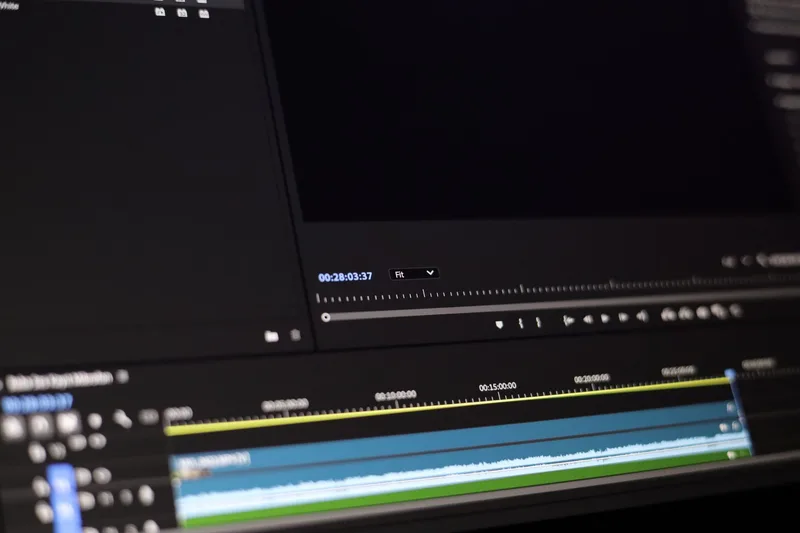
Premiere Pro keeps audio inside the main timeline through its Essential Sound panel, tagging clips as Dialogue, Music, or SFX and applying presets per tag. Premiere also ships with the native text-based editing panel on every paid tier: Adobe transcribes the clip, you select and delete text, and the matching audio and video cut automatically. That turns removing filler words and false starts from a timeline-scrubbing job into a text-editing job, which is the single biggest time saver for narration-heavy channels, provided you are already paying for a Premiere plan.
If narration cleanup is your bottleneck and you are on free Resolve: Fairlight’s AI audio tools come at no extra cost. If you want transcript-based cutting without upgrading to Resolve Studio, Premiere’s text-based editor gets there a tier earlier, but you are paying monthly to get it. Either way, a full voiceover process, not just the editor, saves the most time. The guide to recording faceless voiceovers and the ElevenLabs review cover the recording and AI-voice side of that process.
3. Stock Footage and B-Roll Access
This is the clearest gap between the two tools for a channel that leans on b-roll instead of original footage.
Premiere Pro’s individual plan bundles access to what Adobe’s own pricing page lists as “1 million+ free photos, drawings, video clips, audio clips, and templates,” searchable from inside the app through Creative Cloud. You still need a paid Adobe Stock subscription for premium clips, but the bundled library alone covers a lot of generic b-roll needs without leaving the timeline.
DaVinci Resolve has no equivalent built in. Blackmagic Design’s product page does not mention a stock media library in either the free or Studio tier. Every clip you cut into a Resolve project has to come from somewhere else: your own footage, a separate stock subscription, or a free stock site you browse in another tab while you edit.
Not sure which part of your stack still needs filling? The free Tool Stack Calculator matches a lean setup to your budget, niche, and publishing pace. Free calculator and plan.
4. AI Tools for Faster Production
Both editors now bake AI into the paid tier, aimed at different jobs.
DaVinci Resolve Studio’s AI Neural Engine powers Magic Mask, which automatically isolates a subject from the background for masking and effects without hand-drawn rotoscoping, plus AI-driven noise reduction for noisy or low-light footage. These tools are Studio-only. The free version does not include the Neural Engine.
Premiere Pro’s individual plan includes 25 monthly generative AI credits, confirmed on Adobe’s own pricing page, which apply to Adobe’s generative features for extending clips or filling gaps in a timeline. Both vendors update AI features often enough that exact capability shifts month to month, so check the current feature list before assuming either one does a specific job.
For a channel that is still assembling found or recorded footage rather than generating scenes: neither AI set replaces a dedicated AI video generator. Resolve’s Magic Mask and noise reduction solve cleanup problems; Premiere’s generative credits solve small continuity gaps. If your channel needs AI-generated scenes instead of touch-ups, that is a different tool entirely, covered in the best AI tools for faceless content roundup.
5. Learning Curve and Time to First Upload
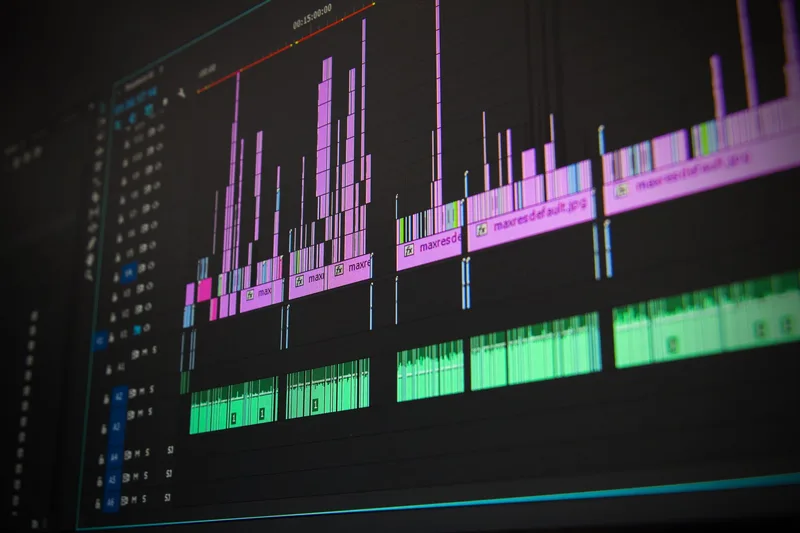
DaVinci Resolve organizes work across eight distinct pages, Media, Photo, Cut, Edit, Fusion, Color, Fairlight, and Deliver, each a near-standalone application. The Photo page, added in DaVinci Resolve 21, applies Resolve’s color tools to still images and is not something a video-first faceless workflow touches often. That structure is built for professional post-production pipelines, not for a solo creator trying to publish a first video this week. The Cut page is a faster, simplified timeline meant to shortcut this, but the overall learning curve is real.
Premiere Pro uses a single, more familiar timeline-and-panel layout. If you have used any mainstream editor before, including CapCut, the transition is shorter. The tradeoff is that Premiere’s panels for color, audio, and effects are each deep enough to have their own learning curve once you go past basic cuts.
For a creator trying to ship video one this week, not this month: Premiere’s single-timeline layout gets a first upload out faster. Resolve rewards the time investment once you are editing several videos a week and want more control, but it costs you more setup time upfront.
6. Export, Captions, and Multi-Platform Delivery
Faceless channels rarely publish to one platform. A long-form video usually needs a vertical cutdown for Shorts, TikTok, or Reels, plus burned-in or platform-native captions.
Both editors export to the standard resolutions and aspect ratios those platforms need, and both support multiple timelines or sequences per project so you can build a long-form cut and a vertical cutdown side by side. Neither one auto-generates short clips from a long video the way a dedicated repurposing tool does. If auto-clipping long-form into Shorts is the step eating your time, that is a separate job best handled by a tool built for it, not by either editor directly, as covered in the CapCut alternatives roundup.

Which Editor Fits Your Faceless Channel?
The choice comes down to your budget and your bottleneck, not which tool is “better” in the abstract.
You are starting with little or no budget: Free DaVinci Resolve. It is a complete, professional-grade editor with no time limit and no watermark.
You have outgrown the free tier and want to own the upgrade outright: DaVinci Resolve Studio. $295 once beats a Premiere subscription within the first year.
You need to assemble videos fast from stock b-roll without hunting for footage elsewhere: Premiere Pro. The bundled stock library and familiar timeline save setup time every single video.
Narration cleanup and filler-word removal are your biggest time sink: either tool helps, but Premiere’s text-based editing panel gets you there without upgrading to Resolve’s paid tier, if you are already paying for Premiere anyway.
You are already inside the Adobe ecosystem for thumbnails or motion graphics: Premiere Pro. Staying in one ecosystem beats learning a second professional suite from scratch.
Most solo faceless creators do not need to pick forever. Many start on free Resolve to keep costs at zero through the first 10 to 20 videos, then reassess once a channel shows enough traction to justify either a Studio upgrade or a Premiere subscription. Switching editors later is mostly a lost-time cost, re-learning keyboard shortcuts and rebuilding a couple of saved presets, not a lost-footage cost, since both tools import standard video and audio formats without conversion.
Frequently Asked Questions
Is DaVinci Resolve really free, or is there a catch?
The base version of DaVinci Resolve is genuinely free: no watermark, no time limit, and support for 4K video at up to 60 frames per second. The catch is that AI tools like Magic Mask and the Neural Engine’s noise reduction, plus text-based editing, are reserved for the $295 one-time Studio upgrade.
Can DaVinci Resolve fully replace Premiere Pro for a YouTube channel?
Yes, for most faceless workflows. DaVinci Resolve handles editing, color grading, and audio through Fairlight without a subscription. The main thing it lacks that Premiere includes is a built-in stock media library, so you will source b-roll separately if you switch.
Is Premiere Pro worth the monthly cost for a solo faceless creator?
It depends on volume. At roughly $23 a month, Premiere Pro costs about $276 a year, every year. That is worth it if the bundled stock library and text-based editing save you several hours per video, less clearly worth it if you publish only one or two videos a month.
Which editor is better for a channel built on voiceover narration?
Both handle narration well. DaVinci Resolve’s Fairlight page includes AI-driven Voice Isolation and Music Remixer at no extra cost in the free version. Premiere Pro’s text-based editing panel, included on all paid tiers, lets you cut narration by editing a transcript instead of scrubbing a timeline.
Keep Reading
- Tool Stack Calculator - match a lean editing and voiceover stack to your budget and publishing pace
- How to Do Voice Overs for Faceless Videos - the recording and cleanup workflow both editors plug into
- 6 Best CapCut Alternatives for Faceless Creators - lighter options if neither Resolve nor Premiere fits your workflow yet
What to Do Next
Don't pay for a stack you don't need yet. Start with the cheapest workable setup.
Get the Tool Stack Plan
3 tiers ($0, $30, $100), 12 tools, upgrade triggers per tier. Decide once, stop hopping. Free PDF.
Free. No spam. Unsubscribe anytime.
Browse the Tools Hub
Free YouTube tools: name generator, title generator, money calculator, thumbnail preview. No signup.
Open Tools HubComplete Channel Launch Pack
10 channel blueprints plus setup assets so you can spend less time choosing tools and more time shipping.
$9 $19 53% off Lowered for first-time creators.